Fancy Text Generator
You know that feeling when you’re going through someone’s Instagram and their bio just looks, different? Like the letters are bold or curly or spaced out in a way that your keyboard definitely does not do by default. And for a second you think wait, how did they pull that off?Chances are they used a fancy text generator. It takes about 30 seconds. No design experience needed. Nothing to install.Once you figure this out, honestly, you’ll kick yourself for not knowing sooner.
So What Even Is a Fancy Text Generator?
It’s an online tool. You put your text in, it spits out that same text in a hundred different styles. Bold versions, script versions, versions with fire emojis on both sides all of it, right there on one page.And here’s the part most people don’t expect: it’s not actually making new fonts. What it’s doing is finding special characters in Unicode that look like regular letters but technically aren’t. So your name in bold” is not really bold text. It’s your name written out using bold-looking math symbols that happen to exist in the Unicode library.Sounds weird but that
The Unicode Thing: Why Does This Matter?
Because it explains everything.Unicode is basically the internet’s master list of characters. Every letter, digit, punctuation mark, emoji all of it has a unique code assigned to it. And the list is enormous. There are thousands of characters in there that most people never see because they’re not on any standard keyboard.
A fancy text maker just knows where those characters live. When you type a regular “A,” it finds the bold version, the italic version, the circled version, the upside-down version and shows you all of them at once.That’s also why the text copies and pastes perfectly everywhere. It’s not an image or a font file. It’s just plain text made from unusual char
What Styles Are Actually in There?
A lot more than you’d expect. Here’s a rough breakdown of what most generators carry: Font-style options: Bold, italic, bold italic, script (the curly handwriting look), fraktur (old German blackletter style), double struck, monospace, sans-serif. These are the clean ones. Good for bios, usernames, anywhere you want to look polished.Wrapped styles: Your text sitting between symbols. Fire on both sides. Crown on both sides. Galaxy emoji. Moon and stars. Skull. These are louder and more decorative. You either love them or you don’t.
Spaced out text: Letters separated by dots, stars, arrows, or just extra spaces. Works for a certain aesthetic, especially on TikTok bios. Effect styles: Strikethrough, underline, overline, dotted overlay. Some tools let you combine these with font styles too.The weird ones: Upside down text, mirrored text, zalgo (that creepy glitchy style with symbols stacking above and below letters), leet speak, pig Latin, morse code, braille, runic. These are mostly for fun but people do actually use zalgo for horror-themed accounts. Most tools load 50 styles first and then have a button to load more. Scroll through, find one you like, hit copy.
Where People Actually Use This
Instagram bios: This is the most common use by far. A name or tagline written in script or bold just reads differently than plain text. It makes the bio feel more put-together. Discord: Gamers especially. A stylized username stands out in a server full of default-font names. Twitter / X — The display name is a common spot. You’ll see people with their name written in bold or small caps.
It doesn’t look like much but it does make a difference in how the profile comes across. Facebook and YouTube: Descriptions, about sections, comments. Works anywhere you can type. WhatsApp group names: Small thing but people definitely notice when a group name uses fancy text instead of plain letters. Forums and comment sections: Some people use it to make their username or posts stand out. Works on Reddit too depending on the comment format.
One heads-up though. Not every platform handles every Unicode character the same way. Some strip unusual characters entirely. If you paste something and it shows up as little boxes or question marks, that’s the platform’s doing the fancy text generator did its job fine.
How to Use It? No Fluff Version
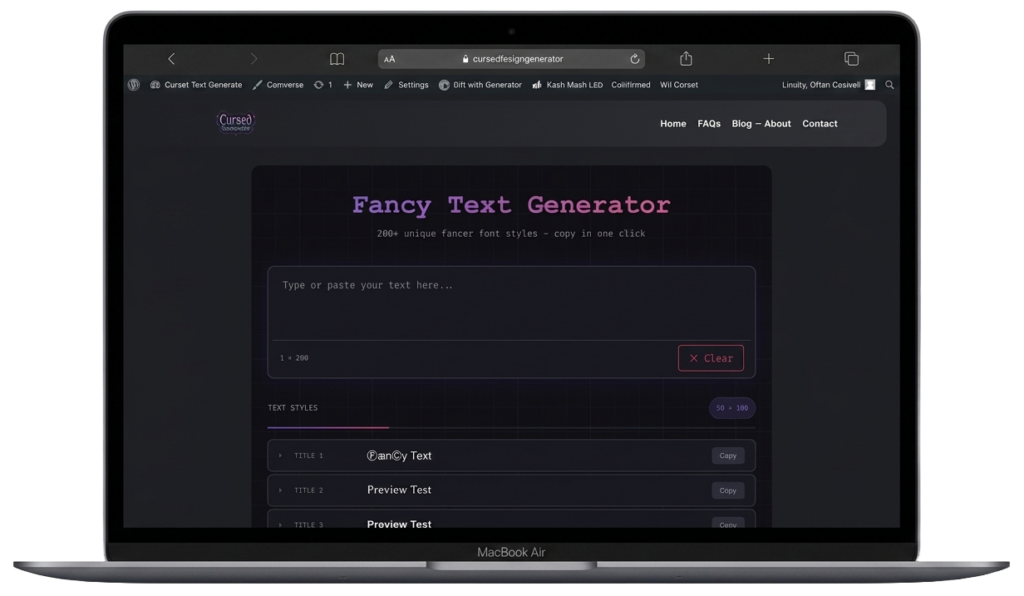
- Open a fancy text generator in your browser
- Type whatever you want in the text box
- Watch the styles appear below as you type
- Scroll until you find one you like
- Click copy
- Paste wherever you need it
Genuinely that’s it. The whole thing takes under a minute once you’ve done it once.
Tips Worth Knowing Before You Start
Short text works better for most styles. A single name or a short phrase looks clean in almost any style. A full sentence in some of the heavier styles turns into a mess fast. Test it out before you commit. Don’t just grab the first option. Scroll through a bit. Especially with styles that use emoji wrappers the difference between a fire wrap and a crown wrap completely changes the vibe.
Take 20 seconds to compare a few. Layering works. You can take the text from one style and manually add symbols from another around it. The tool gives you the pieces, you don’t have to use exactly what it outputs.
Mobile preview matters. Some wide-spaced styles look great on desktop and then fall apart on a phone screen. If you’re posting on Instagram or TikTok, check how it looks on mobile before publishing. Save the ones you like. Keep a note in your phone with the styles that work for you. Saves you from having to scroll through everything again the next time you need it.
